BetterFlow
Public Booking Site

Let customers request work from anywhere.

Give your business a booking page where customers can choose a service, share job details, request a time, and move directly into your BetterFlow schedule.

Share Use one public link on your website, messages, or social profiles.
Collect Capture service type, date, time, notes, and customer contact details.
Approve Review requests before they become scheduled work.

Public Booking Page

Mon 10:00 AM
Tue 2:30 PM
Wed 9:00 AM
Fri 1:00 PM
Service Kitchen repair consultation
Customer Jordan Parker, (555) 217-8044

New request

Needs review Tue, 2:30 PM

Kitchen repair consultation with photos and customer notes attached.

Deny Accept
Confirmed Booking added

The accepted request is now ready for scheduling, estimates, and follow-up.

Customer booking flow

A simple booking experience customers can finish quickly.

BetterFlow keeps the public page focused: customers choose a date, pick an available time, then share the details your team needs before approving the request.

Start with clear available dates.

Customers see real appointment options without needing to call, text, or wait for a reply. The layout keeps choices easy to scan on desktop and mobile.

  • Show available days with slot counts
  • Keep the booking path simple and guided
  • Let customers reveal more dates when needed

Schedule your appointment

Pick a date
Mon, Jun 18 slots
Tue, Jun 28 slots
Wed, Jun 38 slots
Thu, Jun 48 slots
Fri, Jun 58 slots
Mon, Jun 88 slots
Tue, Jun 98 slots
Wed, Jun 108 slots
Thu, Jun 118 slots
Show other dates ↓
Then make time selection feel immediate.

After a date is chosen, the customer lands on available times for that day. Their choice stays visible, and they can change it before sending the request.

  • Confirm the selected date before choosing time
  • Show clean time buttons that are easy to tap
  • Prepare the request for date, time, and details

Schedule your appointment

← Back
Tue, Jun 2 Change
Select a time
9:00 AM
10:00 AM
11:00 AM
12:00 PM
1:00 PM
2:00 PM
3:00 PM
4:00 PM
Booking controls

Approve requests and shape how customers book.

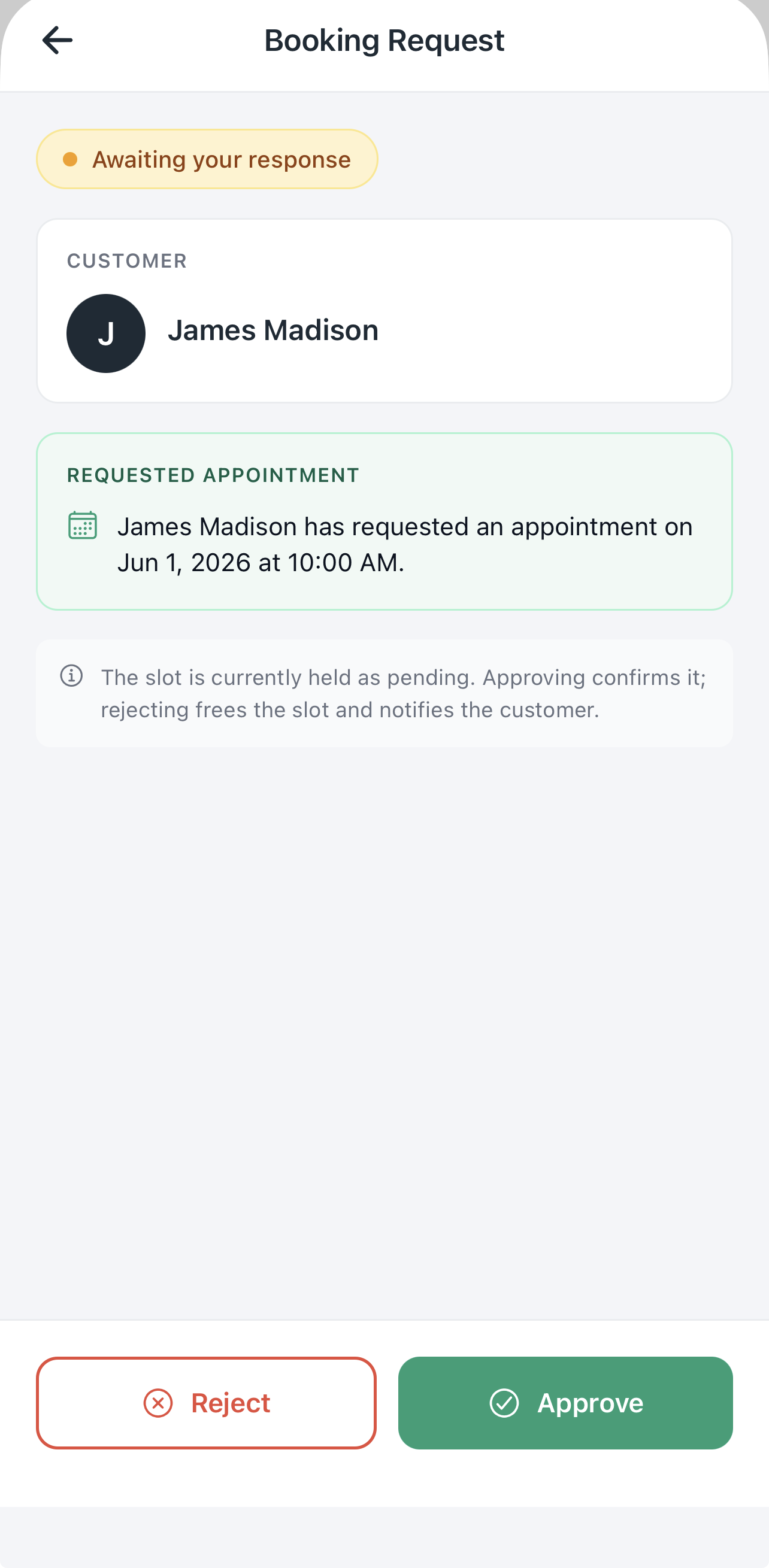
BetterFlow gives owners control after a customer submits a request: review the held slot, approve or reject it, collect prepayments, and define when bookings are allowed.

Request acceptance

Hold the slot until you approve it.

New requests can stay pending while you review the customer, timing, and job details. Approving confirms the appointment; rejecting frees the time and notifies the customer.

Review the customer before confirming the appointment Approve the request or reject it from one screen Keep the selected time protected while it waits for your response
BetterFlow booking request approval screen
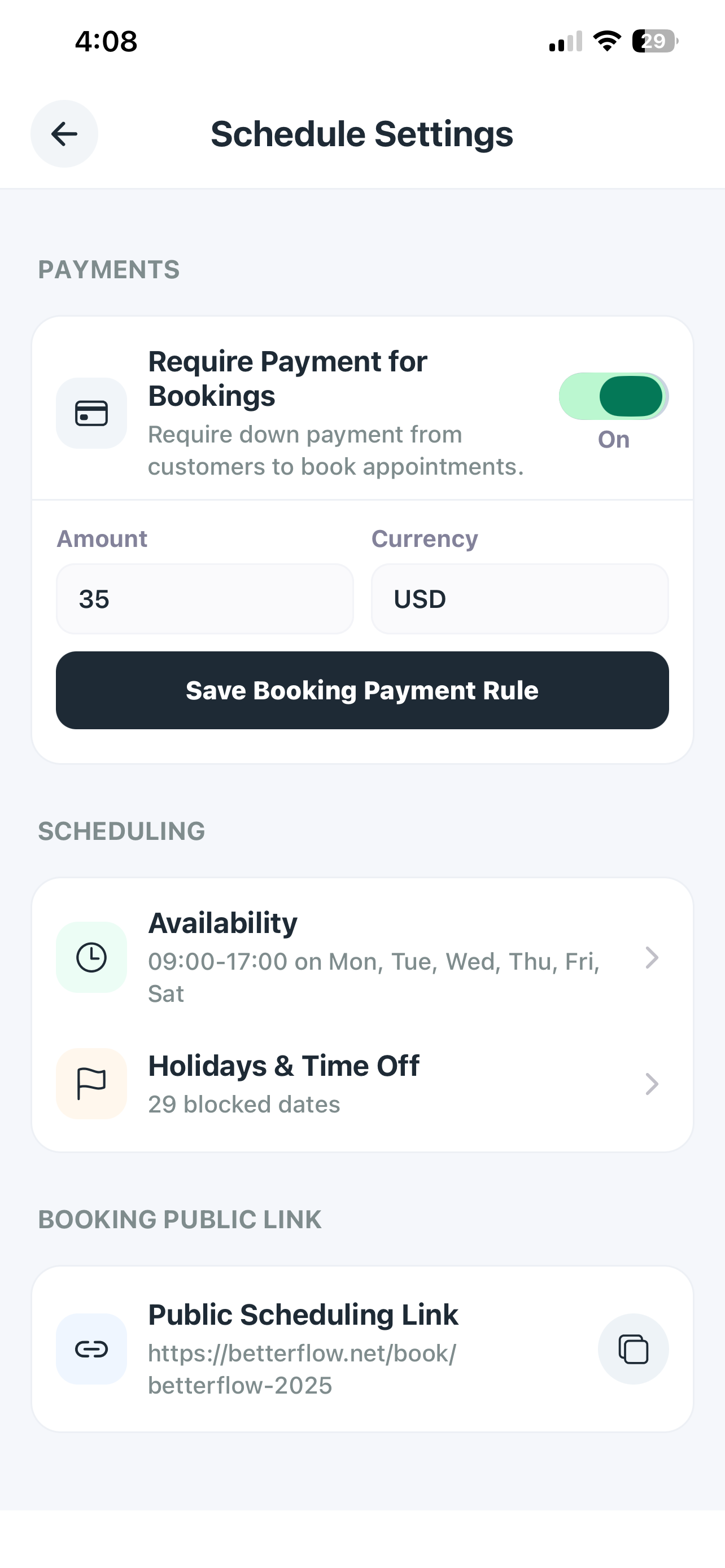
Schedule settings

Add prepayment, hours, and holidays.

Set a booking deposit, customize your weekly availability, block holidays or time off, and share one public scheduling link customers can use whenever they are ready.

Require a booking prepayment before customers reserve a time Customize appointment availability by day and hour Block holidays, time off, and unavailable dates
BetterFlow schedule settings with prepayment and availability controls
How it works

From website visitor to scheduled work.

The booking site turns scattered calls and messages into structured requests your team can review, approve, and connect to the rest of the job workflow.

1

Customer chooses a service.

Customers pick the type of work they need and share the details that help you decide next steps.

2

They request a date and time.

BetterFlow captures timing preferences without forcing you to confirm work before reviewing it.

3

You approve and follow up.

Accept the request, move it into your schedule, and keep customer history attached.

A booking page that feeds the rest of your business.

Once a request is accepted, the customer and job details can support scheduling, estimates, invoices, notifications, and payment collection instead of living in a separate form inbox.

Customer contact details captured from the start
Job notes and service type stay attached
Approved requests move into scheduling
Follow-up, estimates, invoices, and payments stay connected